
Region recording with privacy in mind
Select the area you want to share. Reduce exposure of notifications, chats, and unrelated information in your videos.
Record your screen, keep every wonderful moment
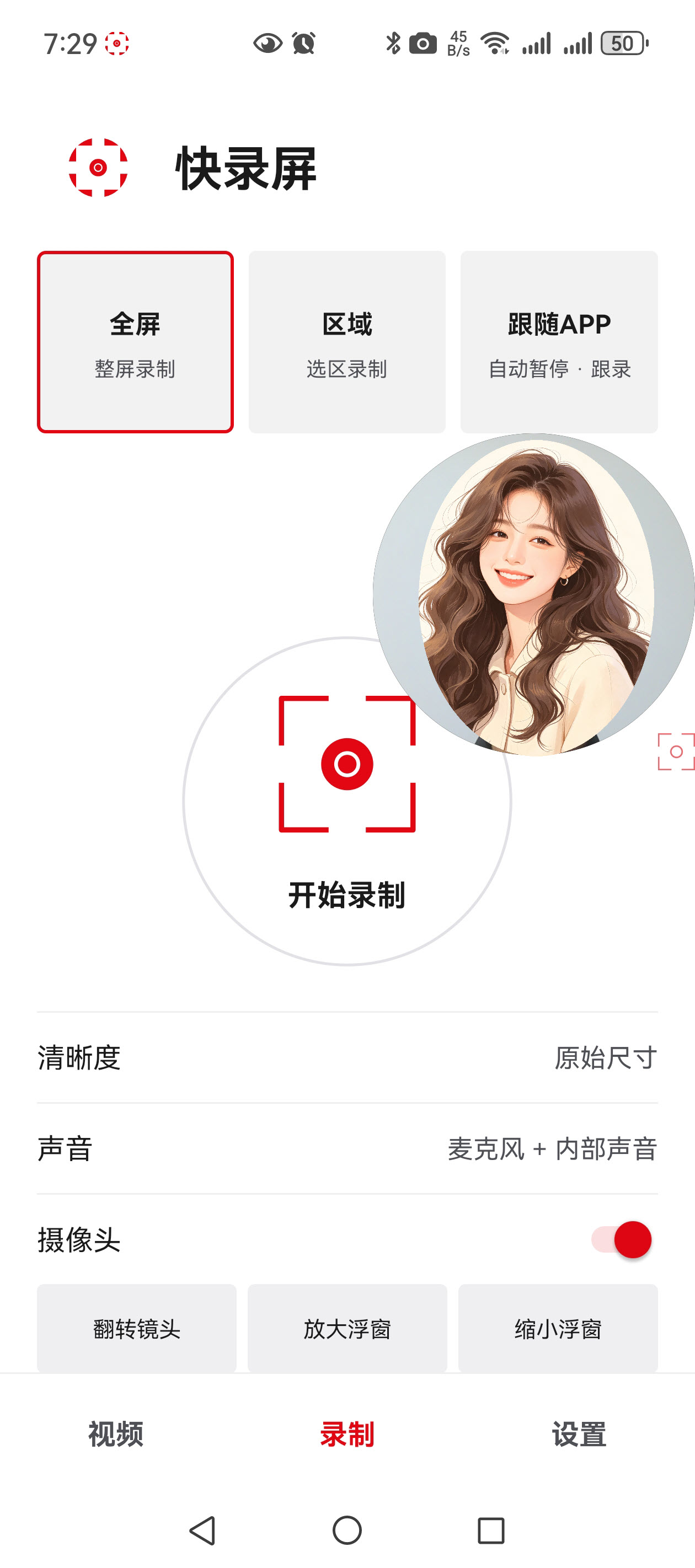
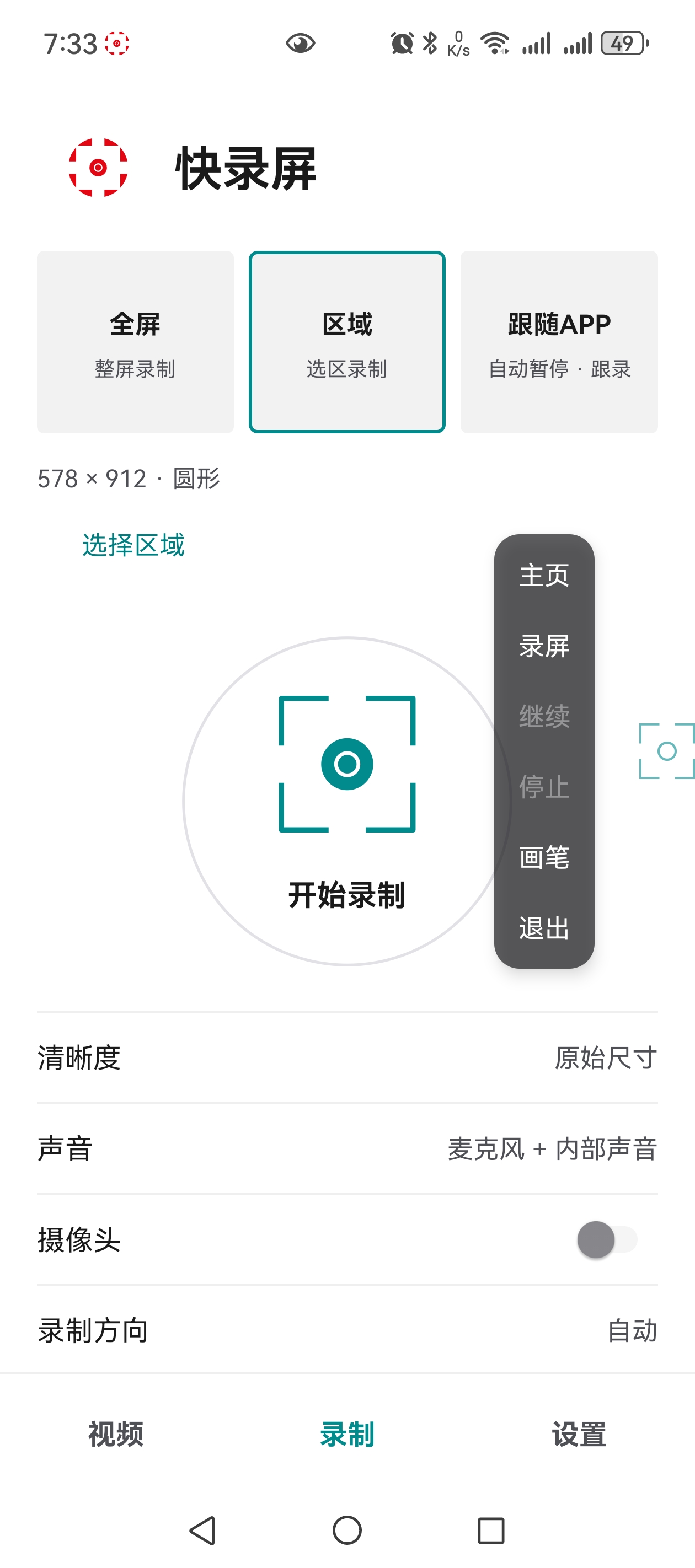
Choose full-screen, region, or app follow recording. Limit exposure with a selected area, use custom shapes, and add a synchronized camera view.
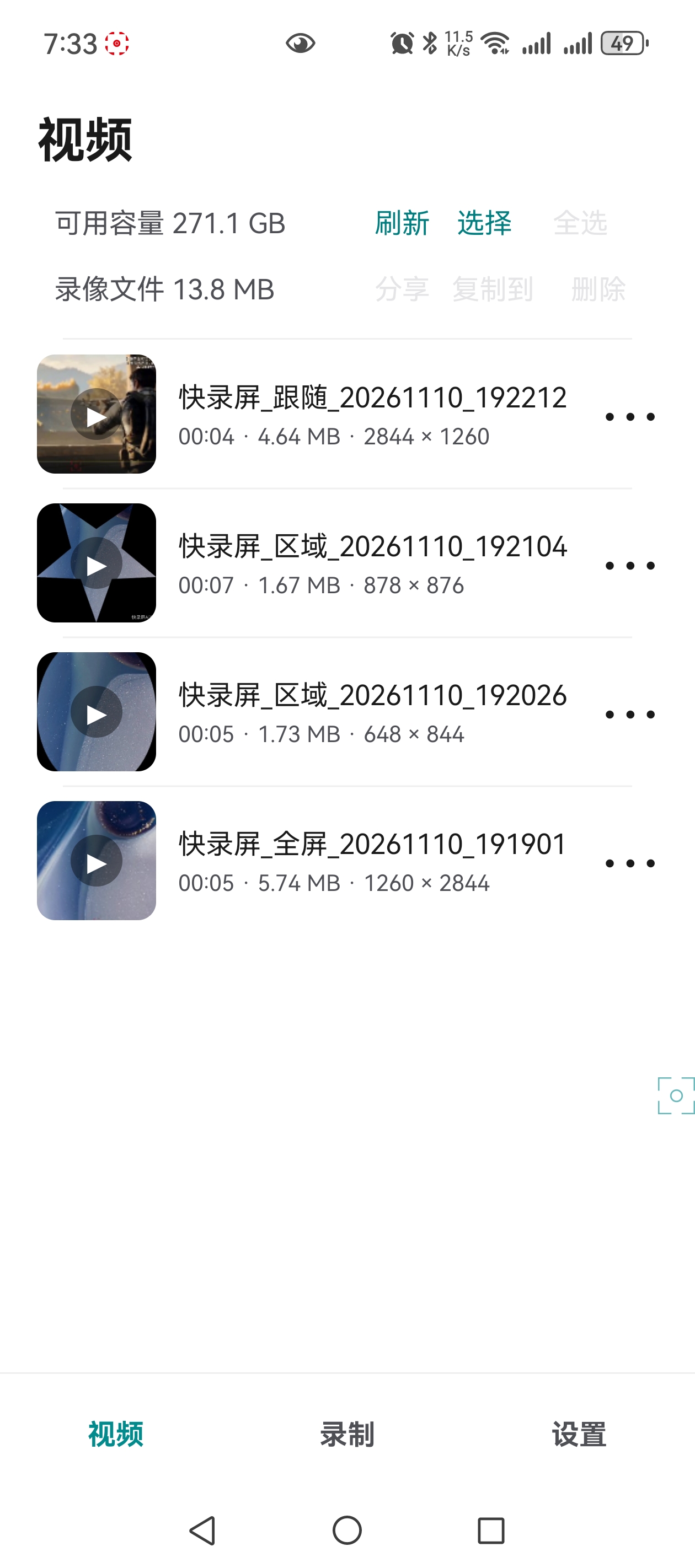
Clarity, freedom, stability
Clear controls for video, audio, and camera presentation. Available parameters depend on device performance, OS version, source app, and free storage.
Features
Choose full-screen capture, a focused region, or app follow recording. You control the recording area for clearer content and more intentional privacy.
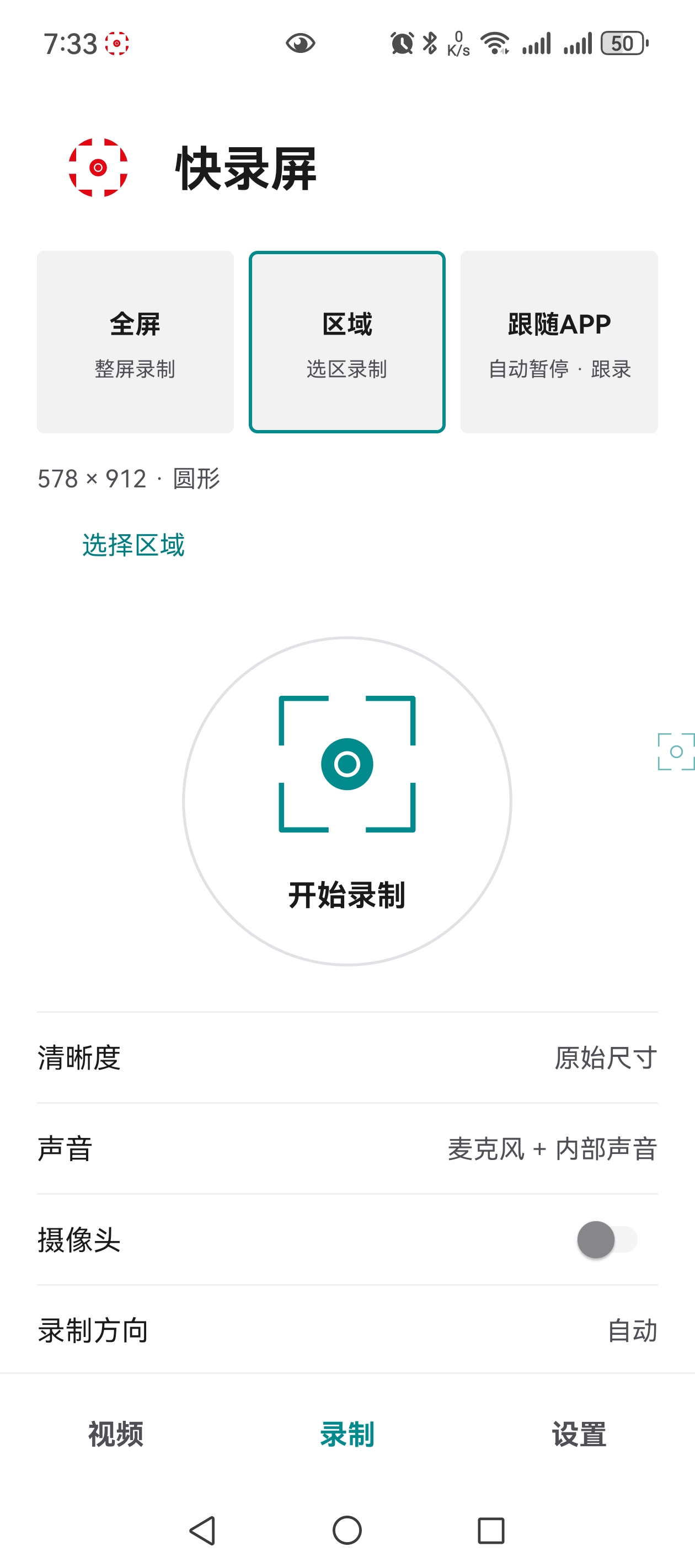
Select the area you want to share. Reduce exposure of notifications, chats, and unrelated information in your videos.
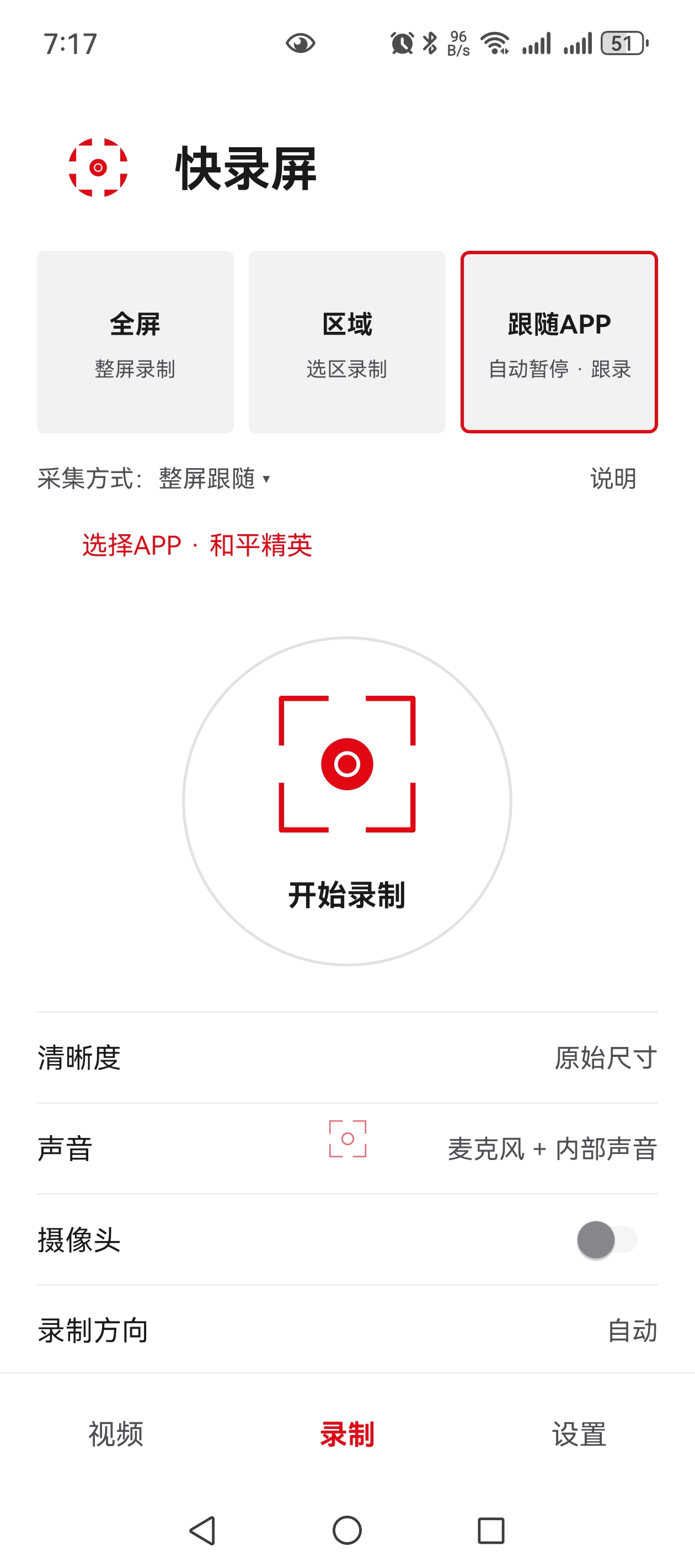
Follow the selected app, pause when you leave, and resume when you return, reducing unrelated footage to organize later.
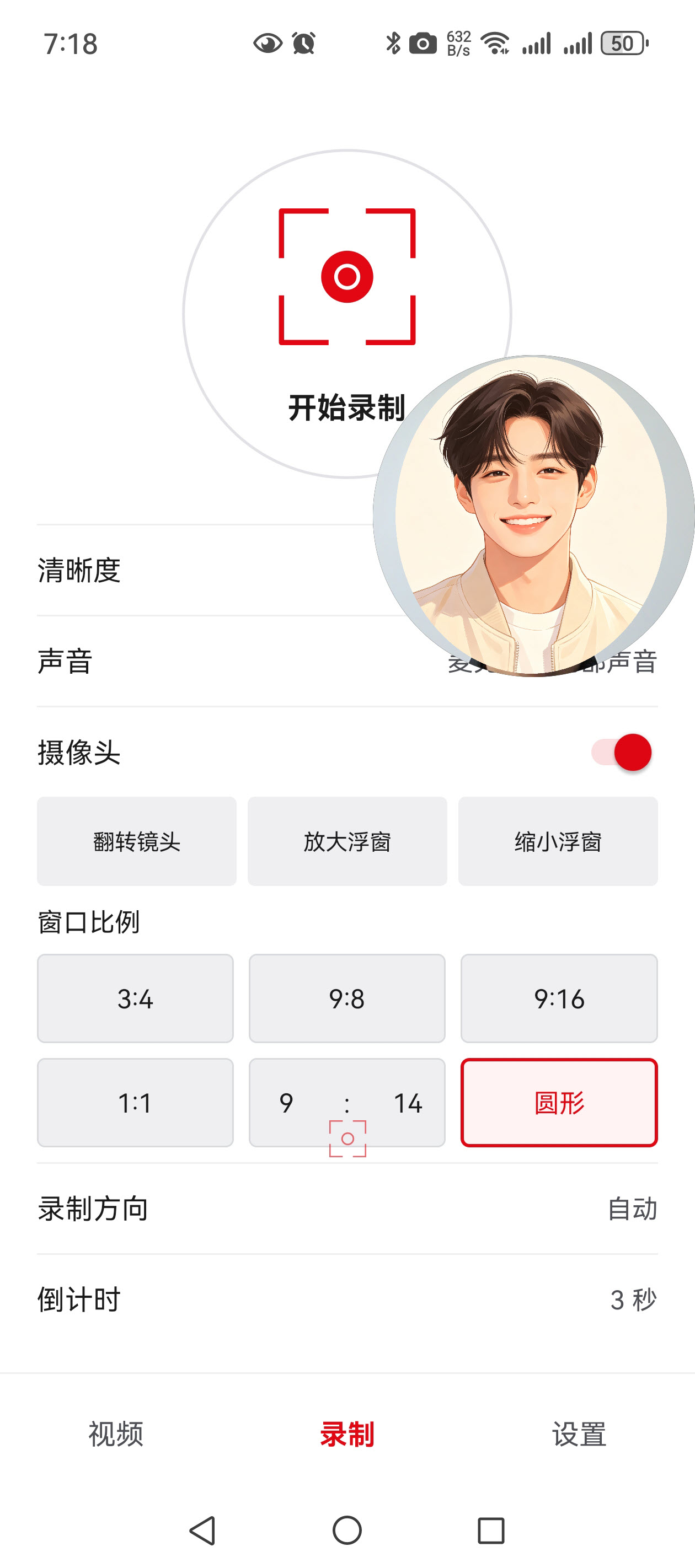
Go beyond rectangles with circles, hearts, stars, and other shapes for distinctive lessons and creative content.
Freely adjust the camera overlay size and aspect ratio to suit your presentation.
| Dimension | Basic recording | Region recording | App follow |
|---|---|---|---|
| Recording area | The full phone screen | A selected area or custom shape | Centered on the selected app |
| Privacy control | Review the full screen before sharing | Keep content outside the selection out of frame | Pause automatically when leaving the app |
| Main setup | Choose sound, clarity, and orientation | Adjust position, size, and shape | Select the app to follow first |
| Typical uses | Complete flows, games, and tutorials | Lesson highlights, demos, and creations | App guides, livestreams, and demos |
On mobile, scroll horizontally to see the complete table.
Use cases
From gaming highlights and lessons to business demonstrations, select the right recording area and add a synchronized camera view for clearer explanations.
Capture complete gameplay and preserve every great moment.
Combine screen and camera so viewers can follow your explanation.
Focus on lesson content without unrelated interface distractions.
Save presentations and discussions for later review.
Present only the necessary content with region recording.
Show the speaker and content together for clearer teaching.
Downloads & installation
Install from an app store, or download the Android APK package directly.
App stores / direct APK download
Updates through AppGallery only
Available through the App Store
Verify the app name and developer before installation
User guide
Decide what to record, then check sound and framing. These are general steps; available options depend on your app version and device.
Choose full-screen, region, or app follow recording. When privacy matters, select only the area you need.
Move the selection and choose a circle, heart, star, or another available shape. After enabling the camera, adjust the overlay size and aspect ratio.
Check clarity, choose in-app audio or microphone audio as needed, and confirm orientation before starting. Then switch to the content you want to present.
App follow mode can record or pause as you leave and return to the selected app. Find the finished file in the video list.
Frequently asked questions
Find answers about recording modes, privacy, custom shapes, camera overlay, and how download links reflect actual publication status.
Full-screen, region, and app follow modes are available. Full-screen captures everything, region mode focuses on a selected area, and follow mode records or pauses with the selected app.
You select the recording area and keep only what you intend to show, reducing the chance that notifications, chats, or unrelated content enter the video.
Follow mode works around the selected app. It pauses when you leave that app and resumes when you return, keeping the recording focused.
In addition to regular selections, you can use circles, hearts, stars, and other custom shapes to give the recording a distinctive outline.
Yes. Show both the speaker and the screen for courses, teaching, and demonstrations, and adjust the camera overlay size and aspect ratio as needed.
After the APK passes review and is published, the server adds its real download URL to the button. Before publication, the button is disabled and no version number, date, or historical package is shown.
Feedback
Specific platforms, versions, steps, and system messages make issues easier to investigate. A real support ticket is created by the server.
Never enter passwords, verification codes, complete tokens, payment details, or recorded videos. Attachments are not accepted.